Before you start
Windows, a supported game and the chosen modlist’s required game version, DLC, storage space and accounts.
Downloads for this guide
Choose the files your setup needs. Paid packages require access through their author.
Wabbajack 4.2.3.0
Official Wabbajack.exe release asset. Place it in a dedicated folder before running.
Latest Wabbajack release
Expand Assets and choose Wabbajack.exe, not the source-code ZIP.
Wabbajack modlist selection
Use the website or the app’s Gallery. Each list supplies its own README and dependency downloads.
Start with the list’s README
Check its required game edition, DLC, storage and preparation. Install or update the game as the README directs. Download any external files the list requires.
Check the required store version and game build as well as edition and DLC. Reserve space for both downloaded archives and extracted files. Use the README’s dependency links; a generic guide cannot supply one correct bundle for every modlist.
Install Wabbajack in its own folder
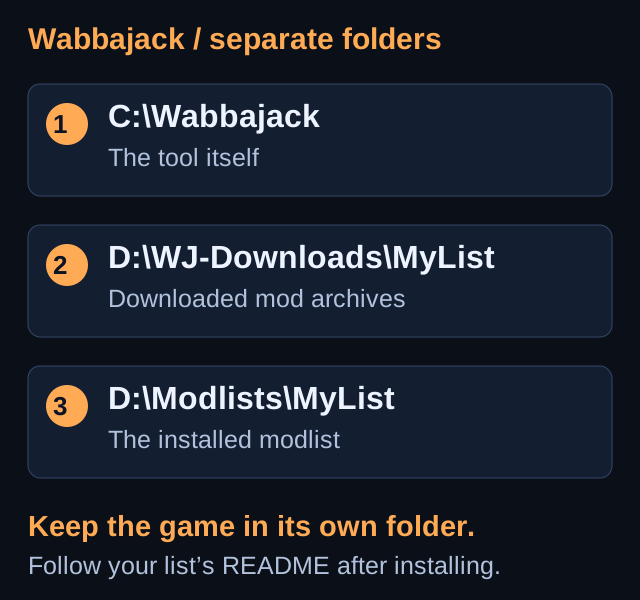
Download it from wabbajack.org. Put the executable in a dedicated folder such as C:\Wabbajack, outside Windows-managed and OneDrive folders. Open it and complete requested account sign-ins.
Alternatively, choose the latest official Wabbajack.exe under Assets on the release page. Create the dedicated tool folder before launching; avoid the root of a drive. Keep the tool separate from the game and the installed modlist.
Complete the required account sign-ins
Open Wabbajack Settings and complete the sign-ins requested for the download services used by your list. Use your own account and finish the browser authorization flow before retrying a download.
If Nexus authentication fails, the project FAQ recommends signing out in Settings and signing back in. Follow any download prompts during installation; account and service requirements depend on the list.
Select your modlist
In the Gallery, choose a list and download its installer file. When ready, use its play/install button. For a downloaded .wabbajack file, choose Install from disk and select the file as Target Modlist.
Read the list/version name before starting. A .wabbajack file describes what the installer should download and assemble; it is not the full set of installed mods.
Set installation and download paths
Choose an installation folder such as D:\Modlists\MyList and a download folder such as D:\WJ-Downloads\MyList. Do not install into the game folder, Wabbajack folder or another list. Avoid Desktop, Documents, Downloads, Program Files and OneDrive.
Choose a unique folder name for each list. Review the space requirements on both selected drives. Do not point the install path at another list because the two use the same game.
Let downloads and installation finish
Start installation and follow any download prompts. Time depends on the list, connection and hardware. Keep downloaded archives so a retry can reuse them.
If a file fails, check the latest log for its exact filename and version. Download that exact archive into the configured download folder when it is still available, then rerun. A removed file may require an updated list from the maintainer; substituting another version can fail validation.
Complete the README’s final steps
After success, follow the list’s post-install instructions and launch through the tool or shortcut it specifies. Do not assume starting the original game launcher loads the modlist.
Follow all post-install steps, then start through the executable or shortcut named by the README. Check the expected profile, controls and visuals before starting a long play session. Each list can use its own launcher and configuration.
Keep lists separate and check update notes
Use a separate installation folder for every modlist. Download archive folders can sometimes be shared, but installed lists cannot be merged. Follow the list’s directions before changing an existing installation.
Before updating, read its notes on save compatibility and personal changes. Back up what you need to preserve. Wabbajack program updates and updates to an individual modlist are different releases with different instructions.
Troubleshooting
One file failed to download.
Read the latest log and identify the exact file/version. If it is still available, download the required archive into your selected download folder and retry. A removed file may require an updated list from its maintainer.
A Nexus login stops working.
Use Wabbajack’s Settings to sign out of Nexus, then sign in again and retry.
Can I combine two lists in one installation folder?
No. Use a separate installation folder for each list. Download archives can be shared when the list’s instructions allow it.
GO TO THE SOURCE
Sources & reference
Use the authors’ current instructions for your game and package.