
Before you start
Your own Wii U game backup and matching update; DLC is optional. Use current GPU drivers. Cemu recommends at least 8 GB RAM for a more dependable setup.
Downloads & documentation
Use the project and author pages below for the current releases and requirements.
Cemu releases
Cemu documentation
Breath of the Wild reference
Extract and configure Cemu
Download the current release for your operating system and extract it outside protected Windows folders. During setup, choose a writable mlc01 location; this contains installed content and saves. Back it up before major changes.
Install your Wii U content
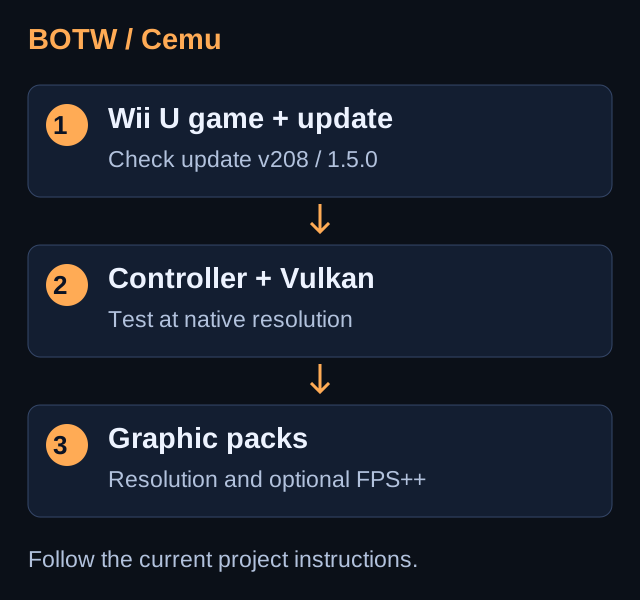
For an extracted title, use File → Install game title, update or DLC and select its meta.xml. Install the matching update and optional DLC. Check the game list: the BOTW wiki specifies update v208 / 1.5.0 for FPS++.
Set up controller and graphics
Open Input settings and map a Wii U GamePad profile. Configure motion input if available. In graphics settings, start with Vulkan on supported hardware and leave other options at their defaults.
Download current graphic packs
Open the game’s graphic-pack settings and download the current community packs. Start at native resolution and a 30 FPS baseline. Verify movement, audio and saving before trying higher resolution or FPS++.
Adjust FPS++ carefully
FPS++ enables a dynamic frame rate, but settings above 30 FPS can affect physics and some shrine or quest behaviour. If a puzzle behaves incorrectly, retry with a 30 FPS limit. Test increased resolution separately from frame-rate changes.
Keep a reproducible setup
Record Cemu, game-update and graphic-pack versions. Back up saves, then test a second launch and the same scene. Higher resolution and frame rate depend on your hardware; this guide does not promise a fixed result.
Troubleshooting
Stuttering during new effects
Shader and Vulkan pipeline compilation can cause initial stutters. Updates to Cemu or the GPU driver can require pipeline rebuilding.
A shrine behaves incorrectly
Return FPS++ to 30 FPS and retry. Check the BOTW wiki’s known issues before adding older workaround packs.
GO TO THE SOURCE
Sources & reference
Menu names and compatibility may change. Follow the linked project documentation for your exact release.