
Before you start
Your own game backup, firmware and prod.keys, a supported GPU, current drivers and at least 8 GB RAM. The original Ryujinx project ended in October 2024; the linked Ryubing documentation describes its maintained fork.
Downloads & documentation
Use the project and author pages below for the current releases and requirements.
Ryubing downloads & documentation
Setup guide
NX Optimizer
Choose a documented release
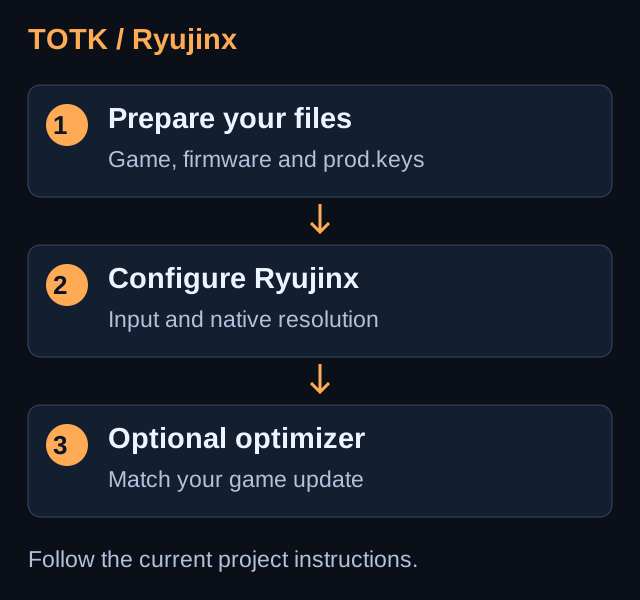
Use the stable-release link on the Ryubing documentation homepage. Extract the release for your operating system into a dedicated folder. Record its version; Canary releases are intended for experienced users.
Add keys and firmware
Choose File → Open Ryujinx Folder and put your own prod.keys into system, then restart. Use Tools → Install Firmware for your own firmware dump. Match the keys and firmware to your game requirements.
Add the game and its update
Add the game directory in Options → Settings. Use the game’s Manage Title Updates menu to add and select your own update. Check the version displayed before installing version-specific mods.
Configure input and a baseline
Configure the controller in Input settings. Begin with the documented default settings and native resolution. Check movement, sound and a save/reload before raising resolution.
Optionally apply NX Optimizer
Open the optimizer’s author instructions, select Tears of the Kingdom and a preset matching your hardware and game update. Portable emulator setups may need their executable selected. Apply the preset and check the enabled mods before launching.
Change one setting at a time
Keep a copy of the working setup. Test the same scene after a resolution or mod change; undo the last change if behaviour worsens. Avoid stacking several FPS-mod packages.
Troubleshooting
Missing keys or firmware
Check the system folder and whether your dumped keys support the installed firmware and game update.
Problems after adding a mod
Return to the baseline and confirm the mod’s supported game version. Use the optimizer author’s current release notes rather than an older preset.
GO TO THE SOURCE
Sources & reference
Menu names and compatibility may change. Follow the linked project documentation for your exact release.